


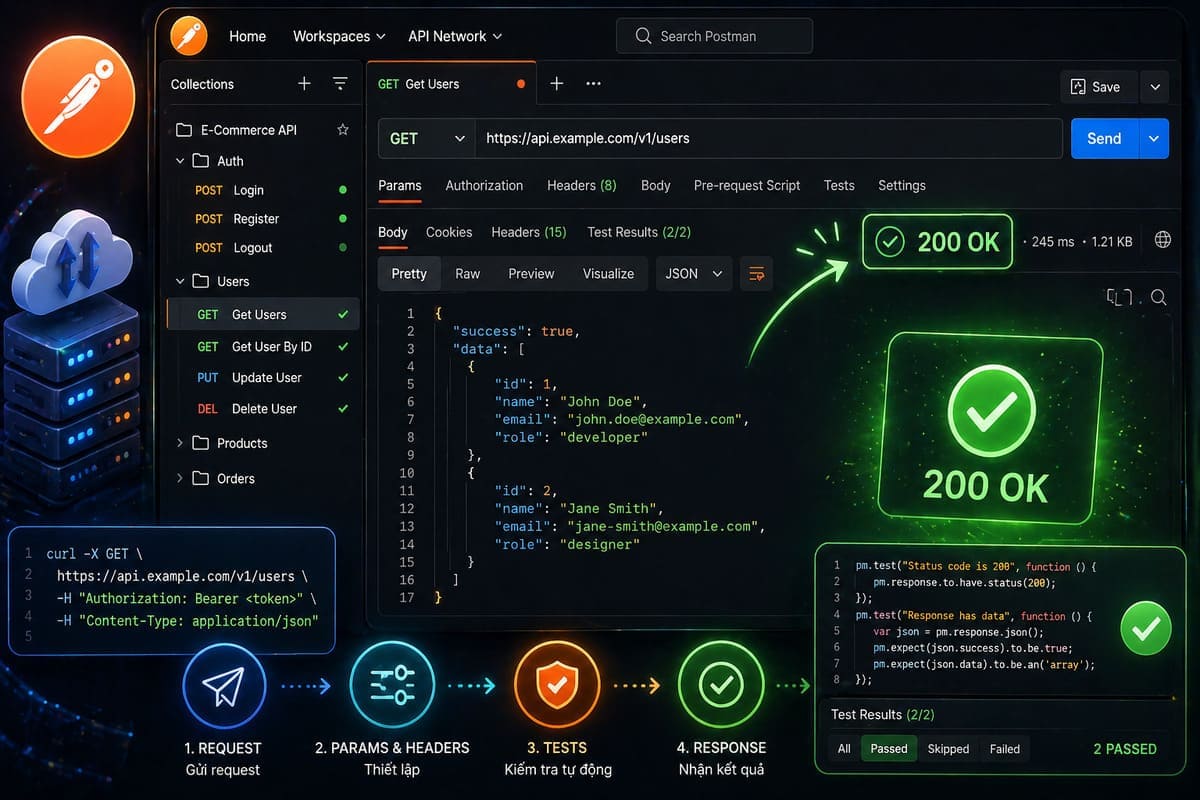
Postman là công cụ test API phổ biến nhất thế giới với hơn 30 triệu developer dùng hàng ngày, nhưng phần lớn chỉ dùng được 20% tính năng của nó. Họ mở Postman, gửi một request, nhìn response, rồi đóng lại. Không có collection có cấu trúc, không có environment variables, không có automated test, không có CI/CD integration. Kết quả là mỗi lần test lại phải setup từ đầu, không share được với team, và bugs vẫn lọt qua production. Bài viết này hướng dẫn bạn cách dùng Postman test API chuyên nghiệp từ A đến Z: từ cách organize collection đúng cách, viết automated tests với JavaScript, quản lý environments, cho đến tích hợp vào CI/CD pipeline với Newman. Áp dụng xong, workflow test API của bạn sẽ khác hoàn toàn.
Tại Sao Cần Test API Đúng Cách?
Một API không được test đúng cách là time bomb trong codebase. Theo survey của SmartBear (công ty sở hữu Postman), 83% developer nói rằng API testing là critical nhưng chỉ 25% có automated test coverage đầy đủ. Hậu quả thực tế: breaking changes lọt qua code review, authentication bug xuất hiện ở production, response format thay đổi mà frontend không biết, và performance regression không được phát hiện sớm.
Test API chuyên nghiệp không chỉ là "gửi request và xem response." Nó bao gồm: validate response schema, kiểm tra edge cases và error handling, đo response time, kiểm tra authentication flows, và đảm bảo backward compatibility. Postman có đầy đủ tools để làm tất cả điều này, nếu bạn biết cách dùng.
Phần 1: Setup Postman Đúng Cách Ngay Từ Đầu
Cài Đặt và Tạo Workspace
Download Postman Desktop App tại postman.com (không dùng web version cho workflow nghiêm túc vì web version có một số limitation với local development). Tạo account miễn phí để sync và share với team.
Workspace structure đúng cách: Tạo workspace riêng cho mỗi project hoặc team, không dump tất cả vào default workspace. Mỗi workspace nên có naming convention rõ ràng:
Workspace naming convention:
[Team/Project] - [Environment]

Ví dụ:
- "E-commerce Backend - Development"
- "Payment Service - Staging"
- "User Auth API - Production (Read-only)"
Collection Structure Chuyên Nghiệp
Sai lầm phổ biến nhất: tạo request flat, không có structure. Đúng cách là organize theo resource hoặc feature:
Collection: My App API v2
├── Auth
│   ├── POST /auth/register
│   ├── POST /auth/login
│   ├── POST /auth/refresh-token
│   └── POST /auth/logout
├── Users
│   ├── GET /users (List)
│   ├── GET /users/:id (Get One)
│   ├── PUT /users/:id (Update)
│   └── DELETE /users/:id (Delete)
├── Products
│   ├── GET /products
│   ├── POST /products
│   └── ...
└── _Setup (pre-run scripts)
    └── GET Health Check
Thêm description cho mỗi request: method, purpose, required headers, expected response. Người mới join team sẽ hiểu ngay mà không cần hỏi.
Phần 2: Environments và Variables
Đây là tính năng mà 70% developer dùng Postman không biết hoặc không dùng đúng cách. Environments cho phép bạn switch giữa dev, staging, production chỉ bằng một click, không cần sửa URL trong từng request.
Tạo Environment Variables
Vào Environments panel, tạo 3 environments:
Environment: Development
Variables:
  base_url    = http://localhost:3000/api/v2
  auth_token  = (để trống, sẽ được set tự động)
  user_id     = test-user-123
  timeout     = 5000

Environment: Staging
Variables:
  base_url    = https://staging.myapp.com/api/v2
  auth_token  = (để trống)
  user_id     = staging-user-456
  timeout     = 10000

Environment: Production
Variables:
  base_url    = https://api.myapp.com/api/v2
  auth_token  = (để trống)
  user_id     = (để trống - không hardcode)
  timeout     = 15000
Trong request URL, thay vì hardcode:
TRƯỚC (sai):
http://localhost:3000/api/v2/users/123

SAU (đúng):
{{base_url}}/users/{{user_id}}
Auto-Set Token Sau Khi Login
Đây là trick quan trọng nhất. Thay vì copy-paste token thủ công mỗi lần login, viết script tự động set token vào environment variable:
Trong request POST /auth/login, tab Tests:
// Auto-set auth token sau khi login thành công
pm.test("Login thành công", function () {
    pm.response.to.have.status(200);
});

// Parse response
const response = pm.response.json();

// Set token vào environment variable hiện tại
if (response.data && response.data.accessToken) {
    pm.environment.set("auth_token", response.data.accessToken);
    pm.environment.set("refresh_token", response.data.refreshToken);

    // Optional: set user info
    pm.environment.set("current_user_id", response.data.user.id);

    console.log("Token đã được set tự động");
} else {
    console.error("Không tìm thấy token trong response");
}
Từ giờ, chỉ cần run request login một lần, tất cả request khác sẽ tự động dùng token mới.
Phần 3: Viết Automated Tests Với JavaScript
Tests trong Postman được viết bằng JavaScript trong tab Tests của mỗi request. Postman cung cấp pm object với đầy đủ assertion methods thông qua Chai.js.
Template Test Cơ Bản
// ========================================
// POSTMAN TEST TEMPLATE - codewithtrung.cv
// ========================================

// 1. Kiểm tra status code
pm.test("Status code là 200", function () {
    pm.response.to.have.status(200);
});

// 2. Kiểm tra response time
pm.test("Response time dưới 2 giây", function () {
    pm.expect(pm.response.responseTime).to.be.below(2000);
});

// 3. Kiểm tra Content-Type header
pm.test("Content-Type là JSON", function () {
    pm.expect(pm.response.headers.get("Content-Type"))
      .to.include("application/json");
});

// 4. Kiểm tra response body có đúng structure
pm.test("Response có đúng structure", function () {
    const body = pm.response.json();
    pm.expect(body).to.have.property("success");
    pm.expect(body).to.have.property("data");
    pm.expect(body.success).to.be.true;
});

// 5. Kiểm tra data types
pm.test("Data types chính xác", function () {
    const data = pm.response.json().data;
    pm.expect(data.id).to.be.a("string");
    pm.expect(data.email).to.be.a("string");
    pm.expect(data.createdAt).to.be.a("string");
    pm.expect(data.age).to.be.a("number");
    pm.expect(data.isActive).to.be.a("boolean");
});
Test Nâng Cao: Schema Validation
// Schema validation với Ajv (có sẵn trong Postman)
const Ajv = require("ajv");
const ajv = new Ajv();

// Define schema mong đợi
const userSchema = {
    type: "object",
    required: ["id", "email", "name", "createdAt"],
    properties: {
        id: { type: "string", minLength: 1 },
        email: {
            type: "string",
            format: "email"
        },
        name: { type: "string", minLength: 2 },
        age: { type: "number", minimum: 0, maximum: 150 },
        role: {
            type: "string",
            enum: ["admin", "user", "moderator"]
        },
        createdAt: { type: "string" },
        isActive: { type: "boolean" }
    },
    additionalProperties: false  // Không cho phép fields lạ
};

pm.test("Response schema hợp lệ", function () {
    const body = pm.response.json();
    const validate = ajv.compile(userSchema);
    const valid = validate(body.data);

    if (!valid) {
        console.log("Schema errors:", JSON.stringify(validate.errors));
    }

    pm.expect(valid).to.be.true;
});
Test Error Cases: Đừng Chỉ Test Happy Path
// Test cho request với dữ liệu không hợp lệ
// Request: POST /users với email invalid

pm.test("Status code là 422 Unprocessable Entity", function () {
    pm.response.to.have.status(422);
});

pm.test("Error response đúng format", function () {
    const body = pm.response.json();
    pm.expect(body).to.have.property("success").that.equals(false);
    pm.expect(body).to.have.property("errors");
    pm.expect(body.errors).to.be.an("array").that.is.not.empty;
});

pm.test("Error message đề cập đến email field", function () {
    const body = pm.response.json();
    const emailError = body.errors.find(e => e.field === "email");
    pm.expect(emailError).to.exist;
    pm.expect(emailError.message).to.be.a("string");
});

// Test unauthorized access
pm.test("401 khi không có token", function () {
    pm.response.to.have.status(401);
});

// Test không tồn tại
pm.test("404 khi resource không tồn tại", function () {
    pm.response.to.have.status(404);
    const body = pm.response.json();
    pm.expect(body.success).to.be.false;
});
Phần 4: Pre-request Scripts
Pre-request scripts chạy trước khi request được gửi. Đây là nơi bạn có thể generate dynamic data, tạo signatures, hoặc setup điều kiện test.
Generate Dynamic Test Data
// Pre-request script: tạo user data ngẫu nhiên mỗi lần test
// Tránh bị trùng lặp data khi chạy test nhiều lần

// Tạo unique email
const timestamp = Date.now();
const randomEmail = `test-user-${timestamp}@example.com`;
pm.environment.set("test_email", randomEmail);

// Tạo random username
const randomId = Math.random().toString(36).substring(2, 8);
pm.environment.set("test_username", `testuser_${randomId}`);

// Tạo random phone number
const randomPhone = `09${Math.floor(Math.random() * 100000000).toString().padStart(8, '0')}`;
pm.environment.set("test_phone", randomPhone);

console.log(`Test data: ${randomEmail}, ${randomId}`);
Generate HMAC Signature Cho Secure API
// Pre-request script: generate HMAC-SHA256 signature
// Dùng khi API yêu cầu signed requests

const CryptoJS = require("crypto-js");

const secretKey = pm.environment.get("api_secret");
const timestamp = Math.floor(Date.now() / 1000).toString();
const method = pm.request.method;
const path = pm.request.url.getPath();

// Tạo string to sign
const stringToSign = `${method}\n${path}\n${timestamp}`;

// Generate signature
const signature = CryptoJS.HmacSHA256(stringToSign, secretKey).toString();

// Set vào environment để dùng trong headers
pm.environment.set("request_timestamp", timestamp);
pm.environment.set("request_signature", signature);

// Trong Headers của request:
// X-Timestamp: {{request_timestamp}}
// X-Signature: {{request_signature}}
Phần 5: Collection Runner và Automation
Chạy Toàn Bộ Collection Một Lần
Collection Runner cho phép chạy tất cả request trong collection theo thứ tự, với data từ CSV hoặc JSON file. Click Run Collection từ collection menu.
Data-Driven Testing Với CSV
Tạo file test-users.csv:
email,password,expectedStatus
[email protected],ValidPass123!,200
invalid-email,ValidPass123!,422
[email protected],wrongpassword,401
,ValidPass123!,422
[email protected],,422
Trong request, dùng variables từ CSV:
{
    "email": "{{email}}",
    "password": "{{password}}"
}
Trong Tests tab:
// Test sẽ chạy với mỗi row trong CSV
pm.test(`Status ${pm.iterationData.get("expectedStatus")}`, function () {
    pm.response.to.have.status(
        parseInt(pm.iterationData.get("expectedStatus"))
    );
});
Set Request Order Với setNextRequest
// Trong Tests tab của request Login:
// Nếu login thành công, chạy tiếp Get Profile
// Nếu thất bại, skip thẳng đến Cleanup

const status = pm.response.code;

if (status === 200) {
    // Set token và tiếp tục flow bình thường
    pm.environment.set("auth_token", pm.response.json().data.token);
    postman.setNextRequest("GET User Profile");
} else {
    // Skip đến cleanup request
    console.log("Login thất bại, skip đến cleanup");
    postman.setNextRequest("Cleanup Test Data");
}

// Để stop collection runner hoàn toàn:
// postman.setNextRequest(null);
Phần 6: Tích Hợp CI/CD Với Newman
Newman là CLI runner chính thức của Postman, cho phép chạy Postman collection trong CI/CD pipeline mà không cần mở Postman GUI.
Cài Đặt Newman
# Cài đặt Newman globally
npm install -g newman

# Cài thêm reporter để có output đẹp hơn
npm install -g newman-reporter-htmlextra
Export Collection và Environment
# Trong Postman:
# 1. Click "..." trên collection > Export > Collection v2.1
# 2. Export environment tương ứng
# Lưu vào thư mục /postman trong project

project/
├── src/
├── tests/
└── postman/
    ├── collections/
    │   └── my-api.postman_collection.json
    └── environments/
        ├── development.postman_environment.json
        └── staging.postman_environment.json
Chạy Newman Locally
# Chạy collection cơ bản
newman run postman/collections/my-api.postman_collection.json \
  --environment postman/environments/development.postman_environment.json

# Chạy với HTML report
newman run postman/collections/my-api.postman_collection.json \
  --environment postman/environments/staging.postman_environment.json \
  --reporters htmlextra \
  --reporter-htmlextra-export reports/api-test-report.html \
  --reporter-htmlextra-title "API Test Report - Staging"

# Chạy với data file
newman run postman/collections/my-api.postman_collection.json \
  --environment postman/environments/development.postman_environment.json \
  --iteration-data postman/test-data/users.csv \
  --delay-request 500

# Exit code: 0 nếu tất cả pass, 1 nếu có failure
# CI/CD sẽ fail build nếu Newman exit với code 1
GitHub Actions Integration
# .github/workflows/api-tests.yml
name: API Tests

on:
  push:
    branches: [main, develop]
  pull_request:
    branches: [main]

jobs:
  api-tests:
    runs-on: ubuntu-latest

    steps:
      - name: Checkout code
        uses: actions/checkout@v4

      - name: Setup Node.js
        uses: actions/setup-node@v4
        with:
          node-version: '20'

      - name: Install Newman
        run: |
          npm install -g newman
          npm install -g newman-reporter-htmlextra

      - name: Start API server
        run: |
          npm install
          npm run start:test &
          sleep 10  # Chờ server khởi động

      - name: Run API Tests
        run: |
          newman run postman/collections/my-api.postman_collection.json \
            --environment postman/environments/ci.postman_environment.json \
            --reporters cli,htmlextra \
            --reporter-htmlextra-export reports/api-test-report.html \
            --bail  # Stop ngay khi có 1 test fail

      - name: Upload test report
        uses: actions/upload-artifact@v4
        if: always()  # Upload ngay cả khi tests fail
        with:
          name: api-test-report
          path: reports/api-test-report.html
Phần 7: Postman Monitors và API Documentation
Setup Monitor Tự Động
Postman Monitors chạy collection theo lịch trình định kỳ và alert khi có failure, phù hợp để monitor production API health.
Vào Monitors tab trong workspace, tạo monitor mới với:
- Collection: chọn collection muốn monitor
- Environment: production environment
- Schedule: mỗi 5 phút, 15 phút, hoặc hàng giờ
- Notification: email hoặc Slack webhook khi fail
Auto-Generate API Documentation
Postman có thể tự động generate documentation từ collection của bạn. Click View complete documentation từ collection, Postman sẽ tạo trang documentation với tất cả endpoints, parameters, và example responses.
Để documentation tốt, mỗi request cần có:
Request Description Format:
---
## Mục đích
Tạo user mới trong hệ thống.

## Authentication
Bearer Token required.

## Request Body
- email (string, required): Email address hợp lệ
- password (string, required): Min 8 ký tự, có chữ hoa, số
- name (string, required): Full name, 2-100 ký tự

## Response
- 201: User tạo thành công
- 422: Validation error
- 409: Email đã tồn tại

## Example
Xem example request và response bên dưới.
---
Những Lỗi Phổ Biến Khi Dùng Postman
Hardcode URL và credentials vào request: URL thay đổi theo environment, credentials là security risk. Luôn dùng variables.
Không version collection: Khi API thay đổi breaking, không có cách rollback collection cũ. Dùng Git để version control file collection JSON đã export.
Chỉ test happy path: Phần lớn bugs nằm ở error handling và edge cases. Luôn có request test cho invalid input, unauthorized access, và not found scenarios.
Không share collection với team: Collection trong máy cá nhân không giúp được ai. Dùng Postman Team workspace hoặc commit collection JSON vào Git repository.
Test assertion quá lỏng: pm.response.to.have.status(200) là chưa đủ. Cần validate structure, data types, và business logic trong response.
Câu Hỏi Thường Gặp Về Postman Test API
Postman free plan có đủ dùng cho team nhỏ không?
Free plan cho phép 3 user cùng workspace, unlimited collections, và 1.000 Postman API calls/tháng. Đủ cho team nhỏ dưới 3 người với workflow cơ bản. Giới hạn chính của free plan là: chỉ 1 active monitor, không có mock server unlimited, và một số tính năng collaboration bị giới hạn. Team từ 4 người trở lên hoặc cần CI/CD integration chuyên nghiệp nên xem xét Basic plan ($14/user/tháng).
Postman khác gì với Insomnia, Thunder Client hay HTTPie?
Postman có ecosystem hoàn chỉnh nhất: collection runner, Newman CLI, monitors, mock servers, và documentation generation. Insomnia nhẹ hơn và có UX tốt hơn cho individual use, nhưng thiếu Newman và CI/CD integration của Postman. Thunder Client là VS Code extension tiện cho quick testing ngay trong editor. HTTPie tốt cho command line testing. Nếu mục tiêu là workflow chuyên nghiệp với team collaboration và CI/CD, Postman vẫn là lựa chọn số một năm 2026.
Làm sao để test API có rate limiting?
Dùng --delay-request flag trong Newman để thêm delay giữa các request, ví dụ --delay-request 1000 để chờ 1 giây giữa mỗi request. Trong Collection Runner, có field "Delay" để set tương tự. Ngoài ra, có thể dùng pm.test để kiểm tra response header Retry-After khi nhận 429 Too Many Requests và implement retry logic trong pre-request script.
Có thể test WebSocket và GraphQL với Postman không?
Có. Postman hỗ trợ WebSocket từ phiên bản 8.5 trở lên: tạo New Request và chọn WebSocket. Với GraphQL, tạo POST request với Content-Type application/json, body dạng query và variables. Postman cũng có tính năng GraphQL schema import trực tiếp từ introspection endpoint, giúp autocomplete queries trong editor. Cả hai tính năng đều có trong free plan.
Nên commit Postman collection vào Git không?
Nên, với một lưu ý quan trọng: chỉ commit collection JSON và environment JSON với placeholder values, không bao giờ commit environment với credentials thực (tokens, passwords, API keys). Dùng .gitignore để exclude các file environment production. Cách tốt nhất là dùng environment template với empty values và inject credentials qua CI/CD secrets khi chạy Newman trong pipeline.
Kết Luận
Developer biết dùng Postman chuyên nghiệp không chỉ test API nhanh hơn mà còn catch bugs sớm hơn, document API tốt hơn, và collaborate hiệu quả hơn với team. Khoảng cách giữa "dùng Postman để gửi request" và "dùng Postman với automated tests, environments, và CI/CD integration" là khoảng cách giữa junior và senior workflow.
Bắt đầu với 3 thứ ngay hôm nay: (1) Organize lại collection hiện tại theo folder structure theo resource, (2) Thêm environment variables cho dev và staging, (3) Viết ít nhất 3 assertions cho 5 endpoint quan trọng nhất. Sau một tuần, bạn sẽ thấy sự khác biệt rõ rệt trong workflow. Sau một tháng, team của bạn sẽ hỏi bạn đã làm gì để API reliability tăng lên như vậy.